Vend IT can receive alerts and errors from your vending machines and display them in the app.
To setup this feature:
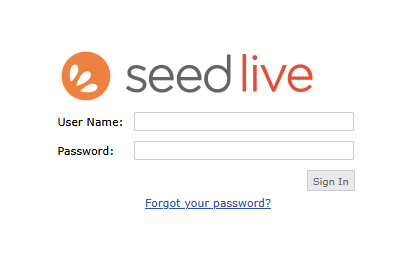
Login to your SeedLive account at https://seedlive.com using your regular credentials.
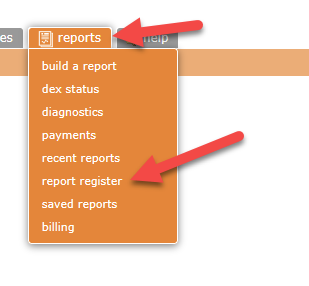
From the menu select reports then report register
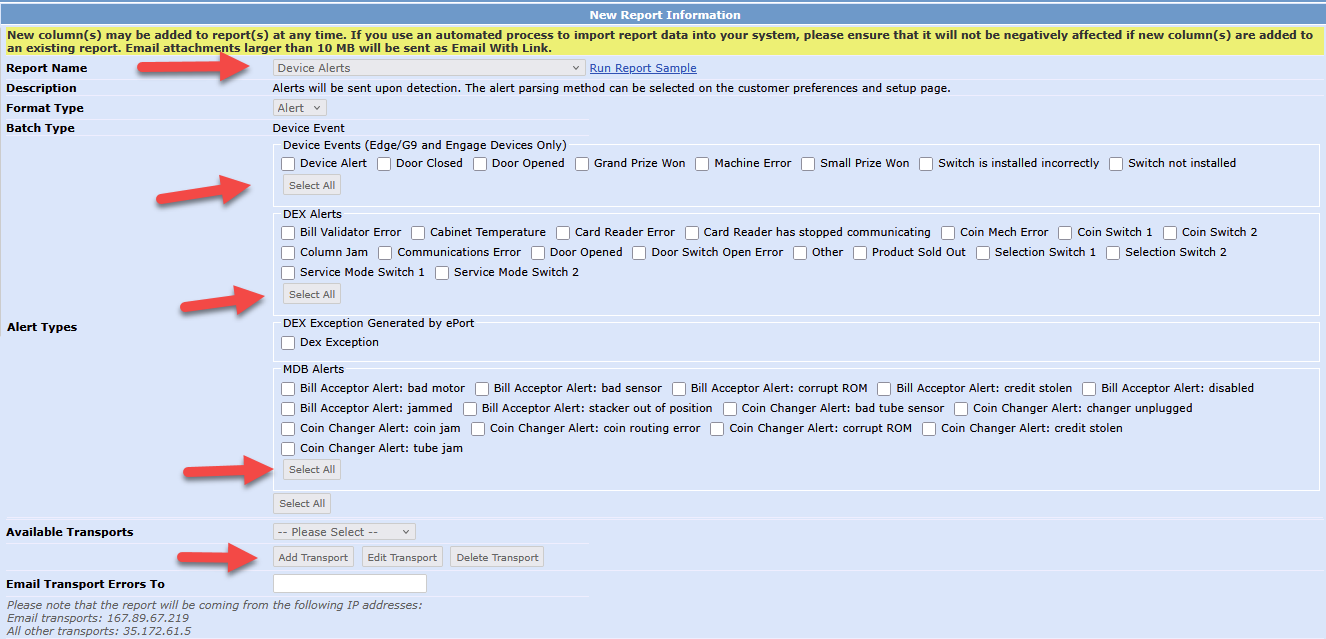
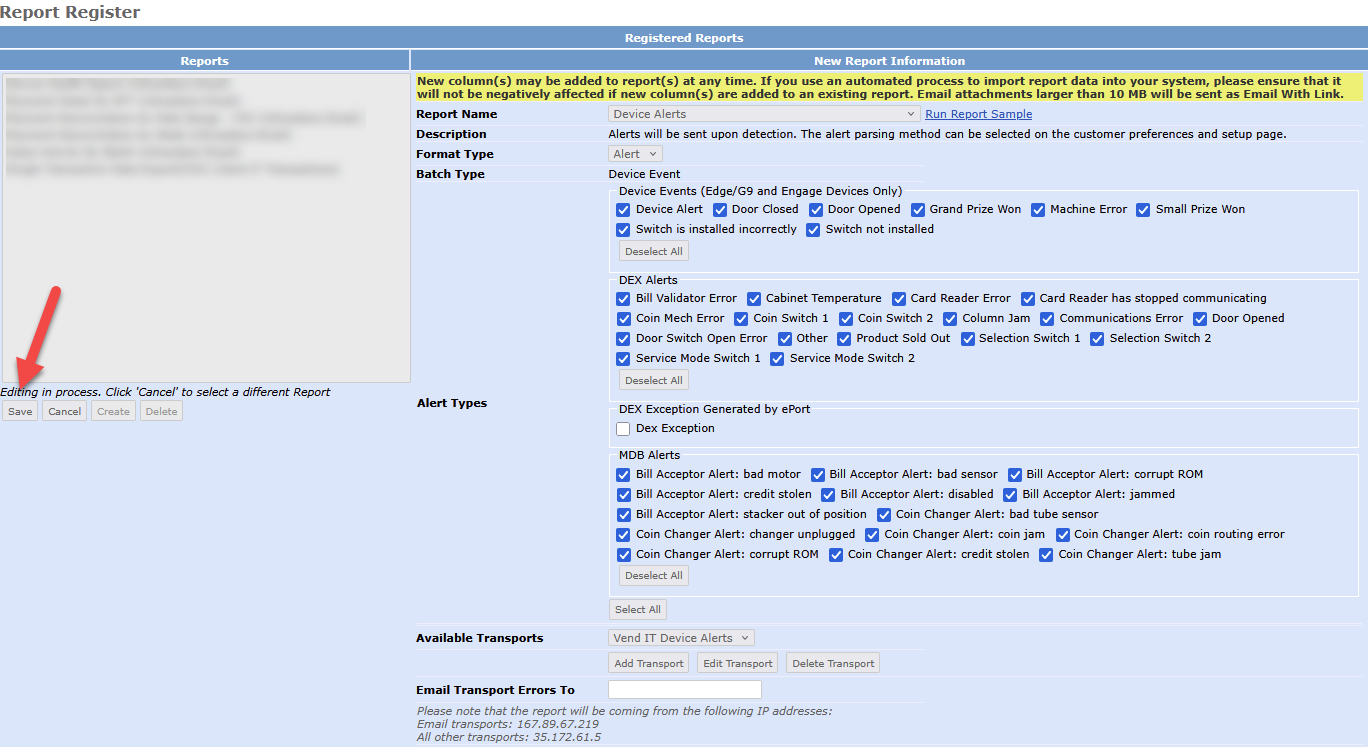
In report register Select Report Name: Device Alerts and then press all of the Select all buttons shown below. Once that is done press Add Transport
Enter the following information:
Transport Name: Vend IT Device Alerts
Email devicealert@vend-it.net
Then Press Test Transport
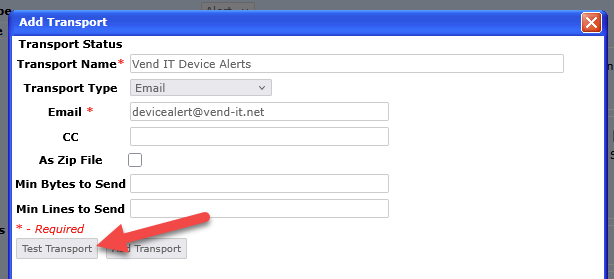
Once you see the following press Add Transport and close the window

Your screen show now log like below. Finally Press save to enable the report to run. On this screen you can customize the alerts that you will receive in the app if there are some of them you do not wish to get.
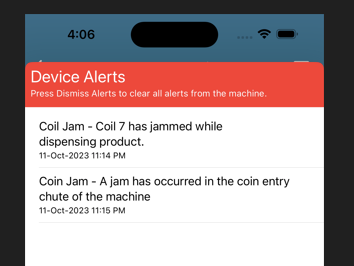
Alerts on your machines will now show in the app like below:

Was this article helpful?
That’s Great!
Thank you for your feedback
Sorry! We couldn't be helpful
Thank you for your feedback
Feedback sent
We appreciate your effort and will try to fix the article